
PS5 Game Rental Rules and Procedures 2026: Complete Step-by-Step Guide
The updated 2026 guide: Add User, the QR code sign-in, Console Sharing for Primary rentals, the rules while you play, and the end-of-rental video checklist that makes you a Top Customer.

This is the complete, updated 2026 guide to renting a PS5 game from Swaps Gaming: how to start, the rules while you play, and the return checklist you complete at the end of every Primary or Secondary rental. Follow it step by step and your rental works first time.
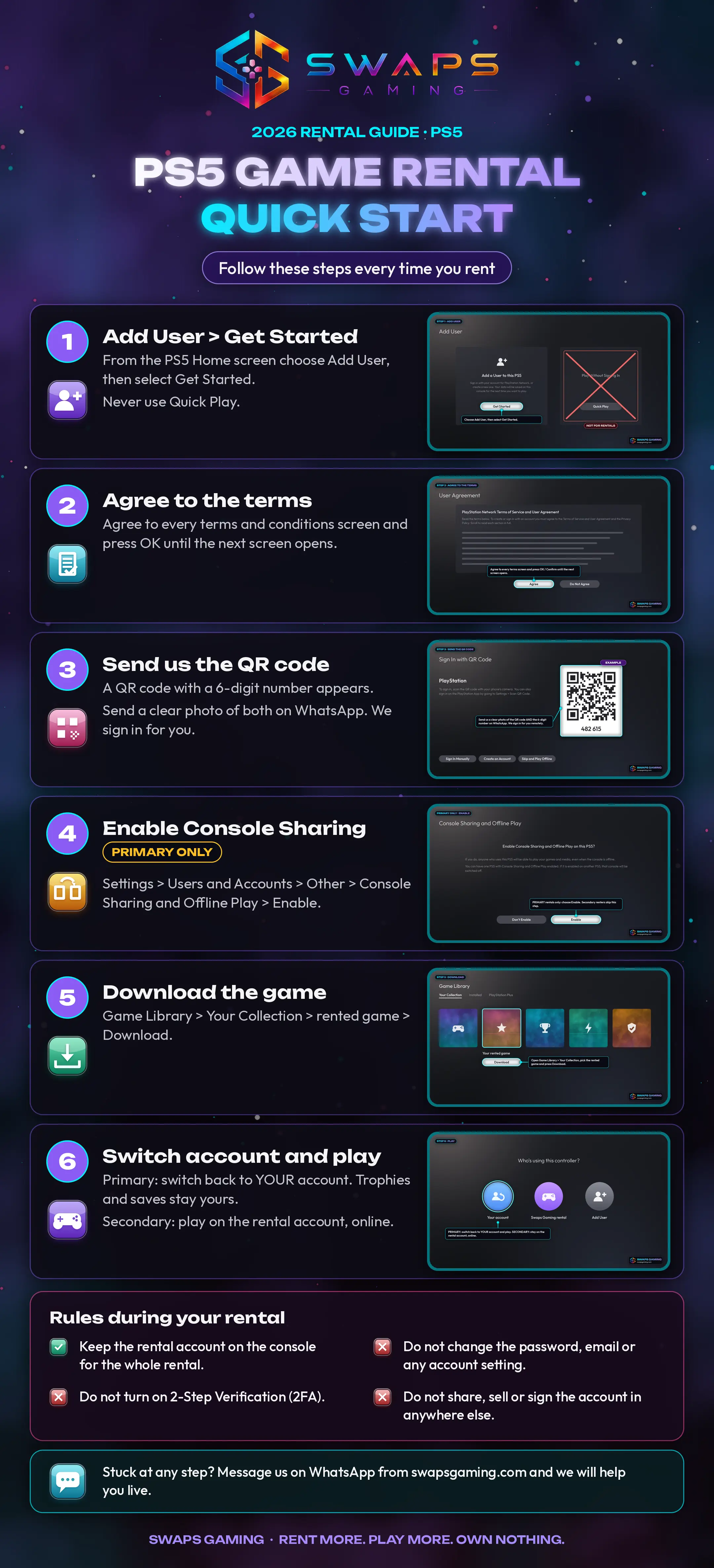
Before you start
- Your PS5 switched on and connected to the internet.
- WhatsApp open on your phone, so you can send us a photo.
- Your rental mode in mind: Primary or Secondary (shown on your order and your Dashboard).
Primary or Secondary: what changes
- Primary: you download the game from our account and play it on your own account. Trophies and saves stay yours, online and offline. Primary renters enable Console Sharing and Offline Play at the start and disable it at the end.
- Secondary: you play on the rental account while online. Secondary renters never touch Console Sharing.
- Lifetime modes follow the same start steps but have no return, so they skip the end-of-rental checklist.
How to start your rental (step by step)
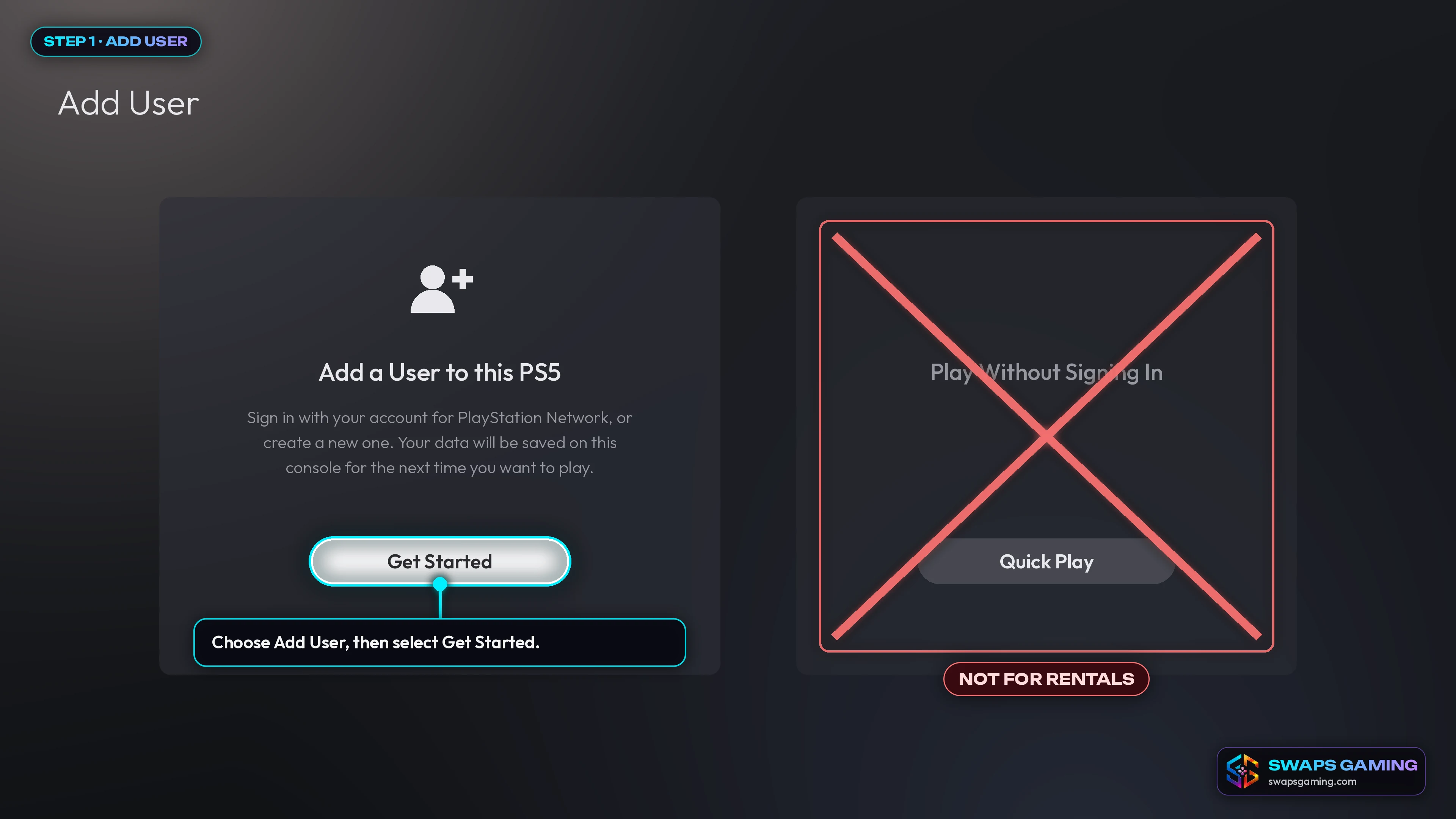
Step 1: Add User, then Get Started
On the PS5 Home screen choose Add User and select Get Started. Do not use Quick Play: it cannot sign in to the rental account.
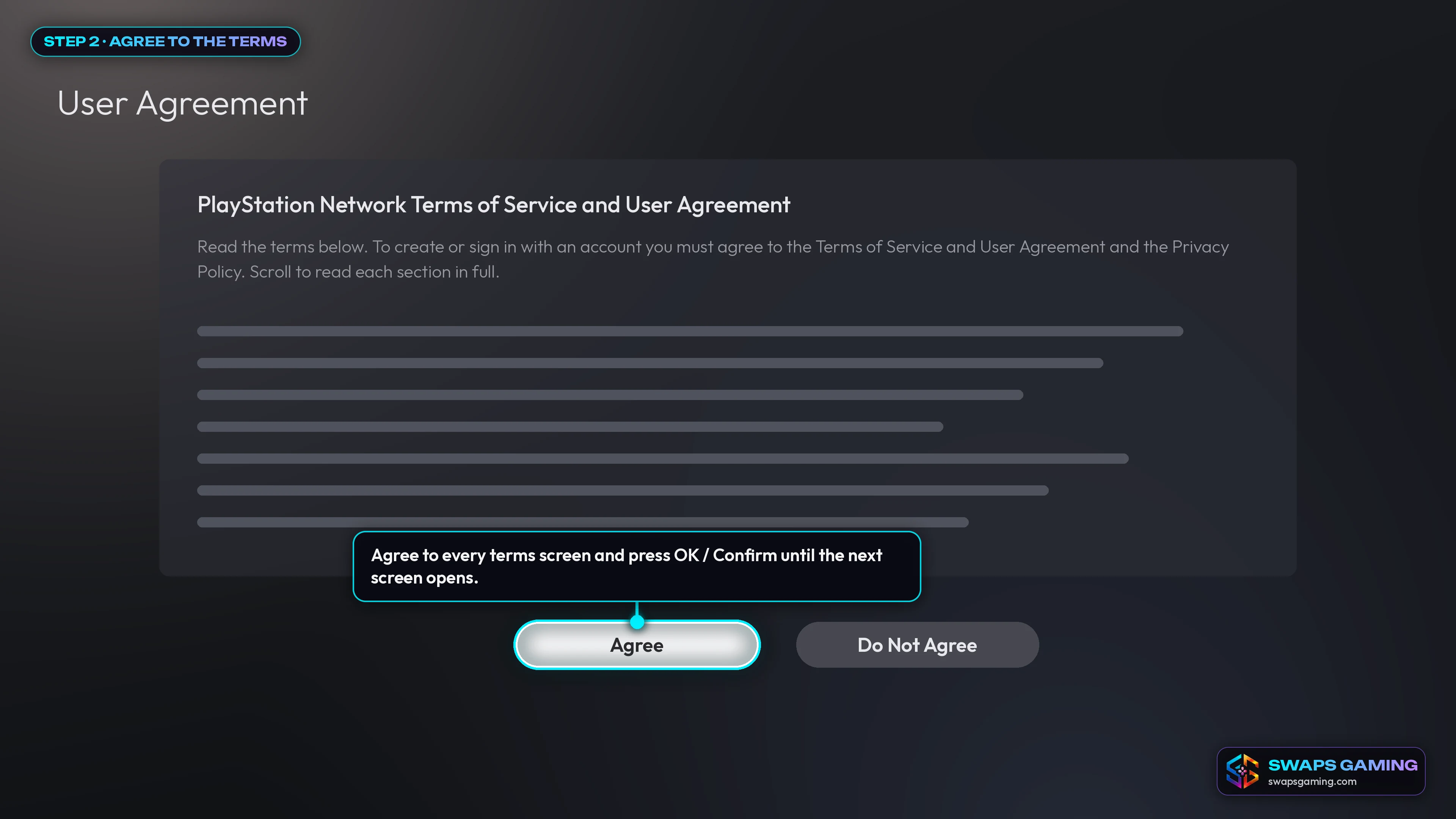
Step 2: Agree to the terms and press OK
Agree to every terms and conditions screen and press OK (or Confirm) until the next screen opens.
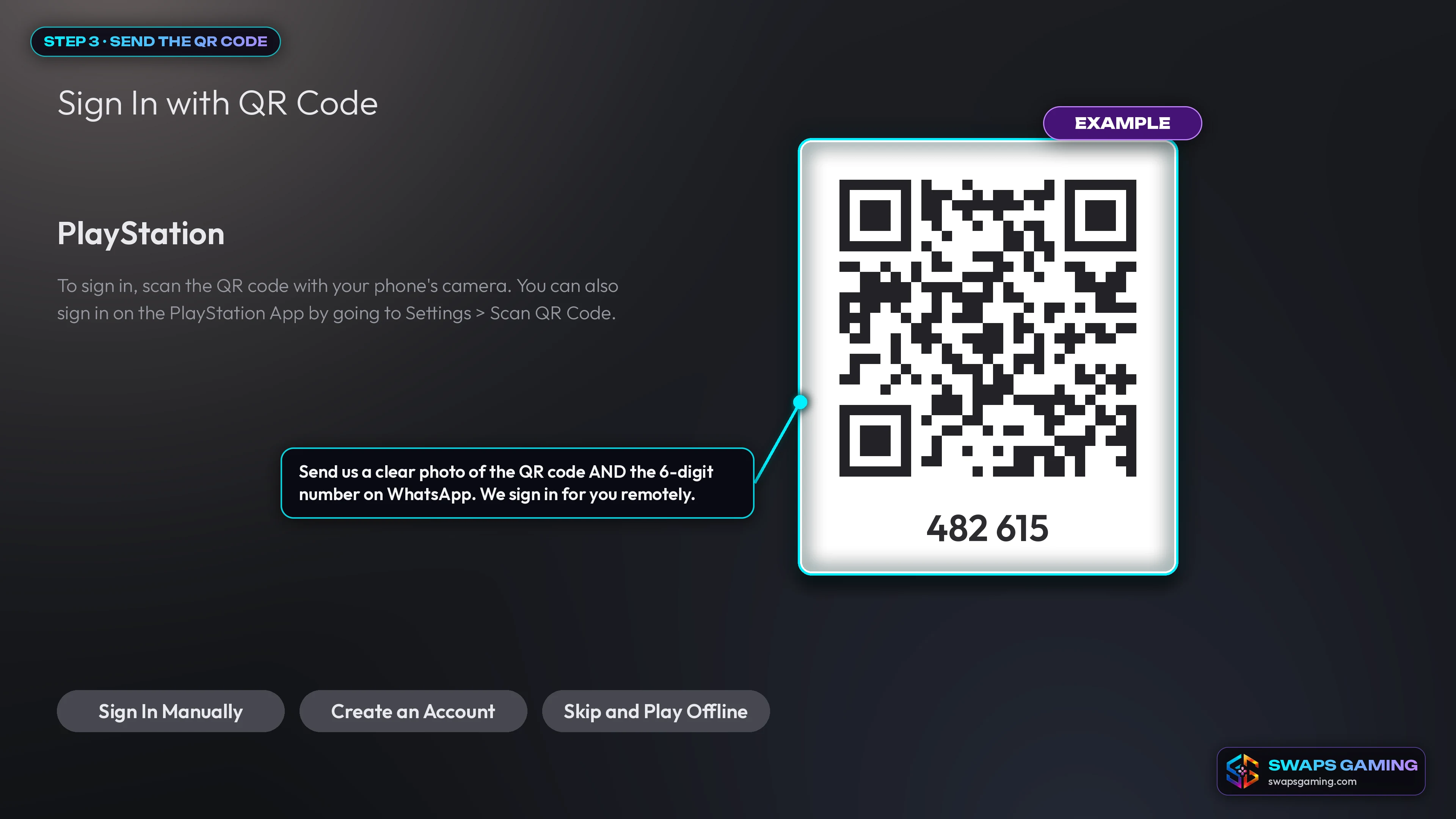
Step 3: Send us the QR code and the 6-digit number
The next screen shows a QR code with a 6-digit number below it. Take a clear photo of both and send it to us on WhatsApp. We sign in to the account for you remotely; you do not type any password.
Step 4 (Primary only): Enable Console Sharing and Offline Play
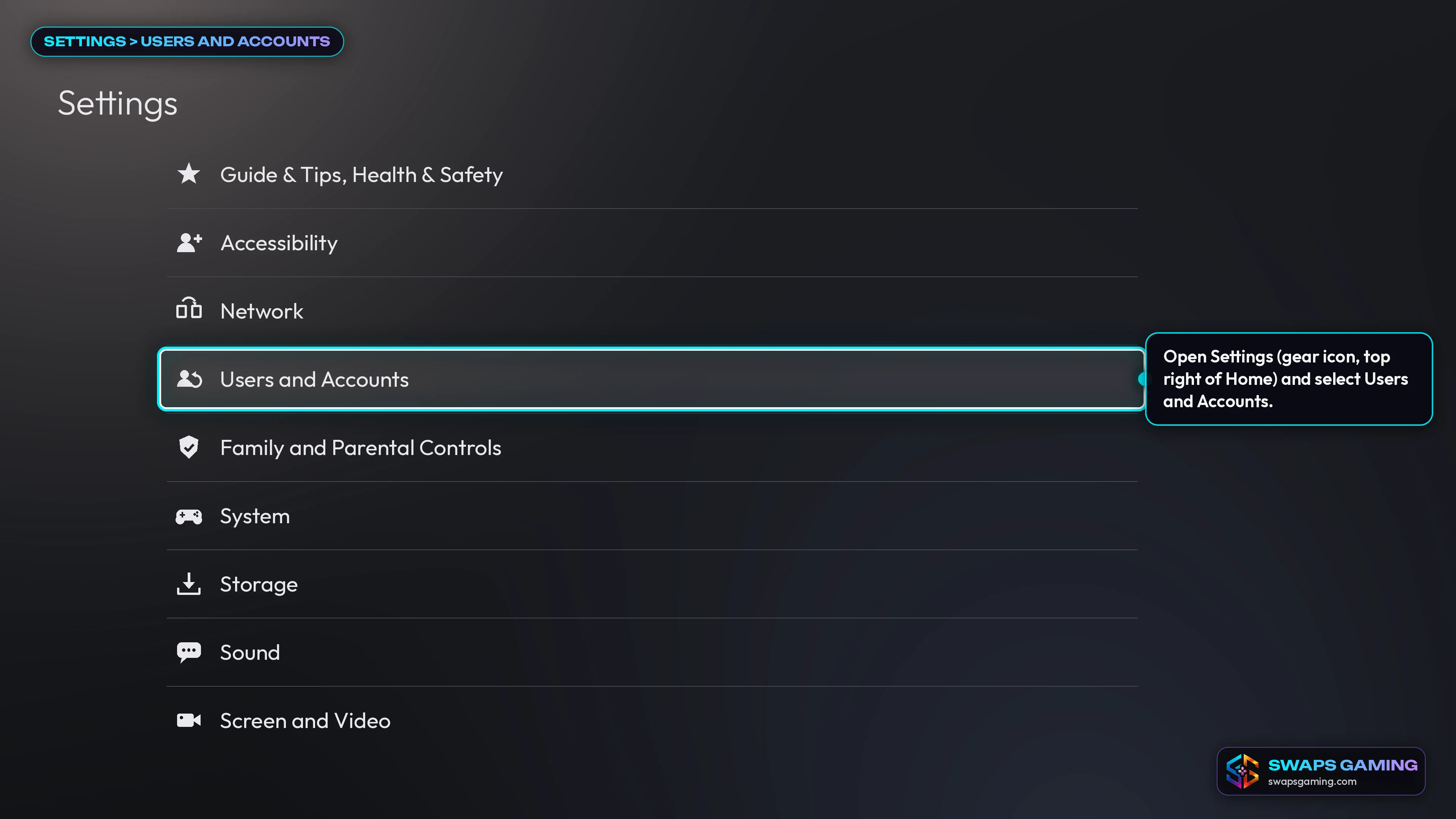
- Go to Settings (the gear icon at the top right of the Home screen).
- Select Users and Accounts.
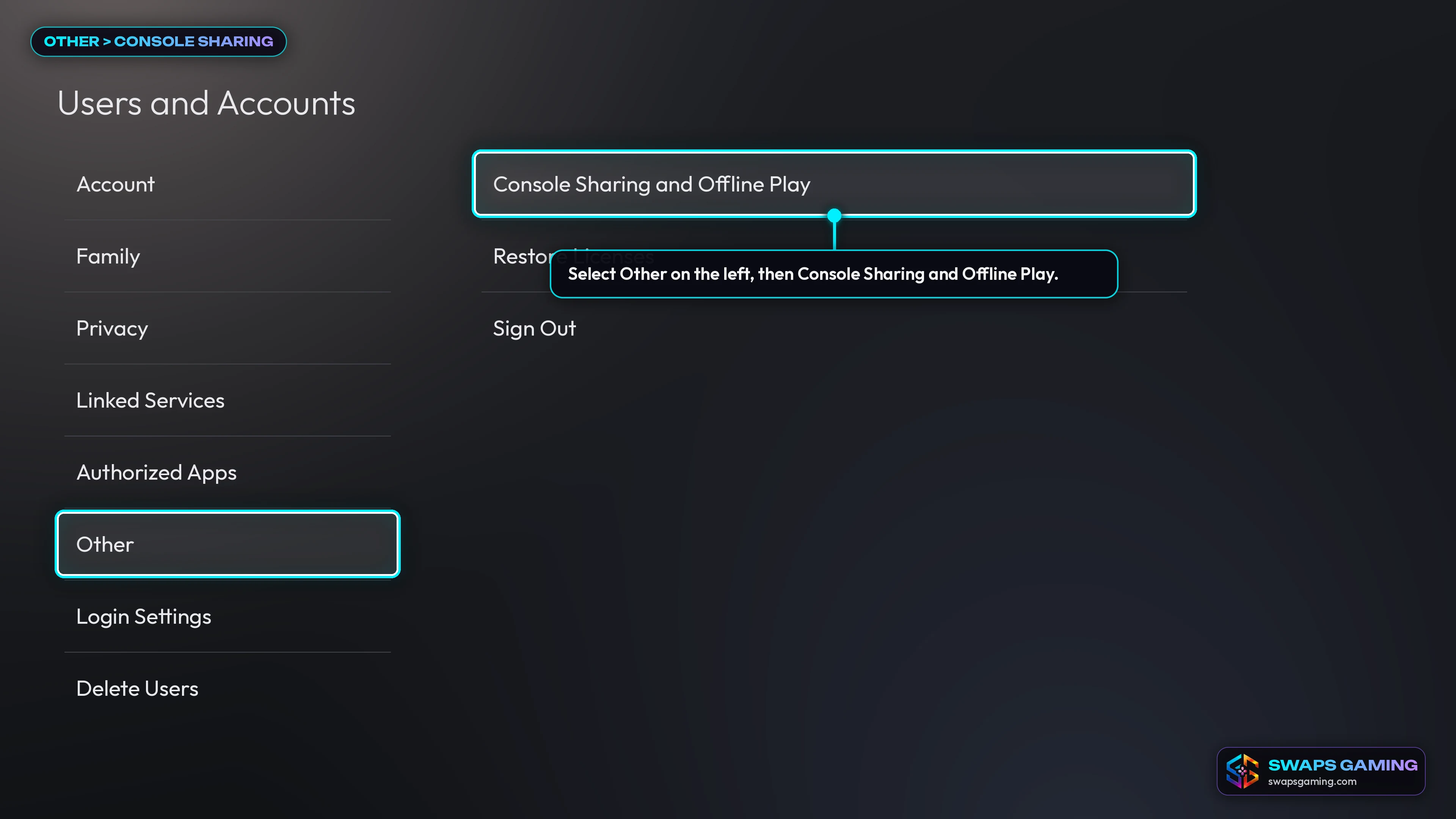
- Select Other in the left menu.
- Select Console Sharing and Offline Play.
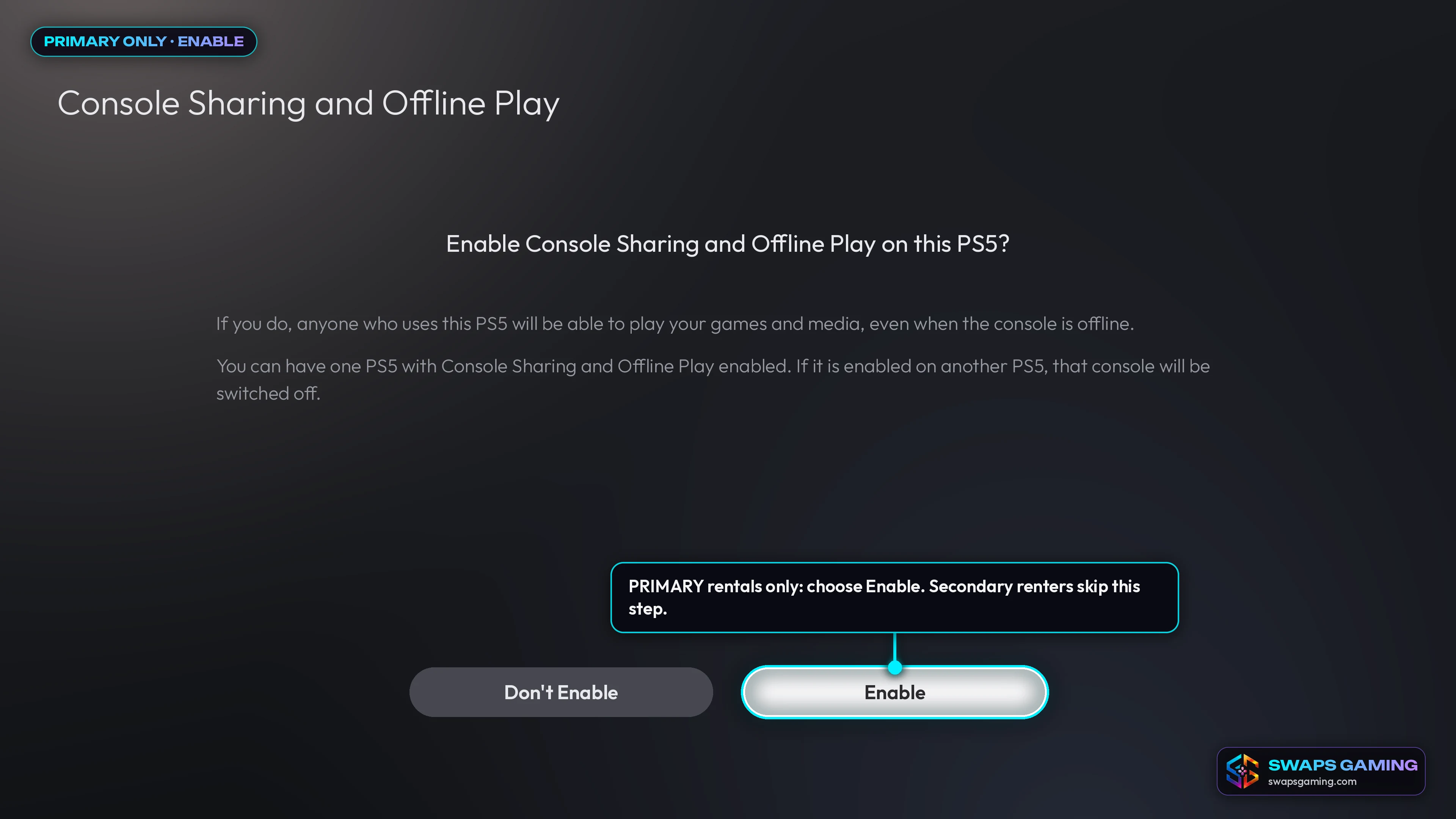
- Choose Enable.
Console Sharing and Offline Play turns on automatically on the first PS5 an account signs in to, so you may find it already enabled. Secondary renters skip this step.
Step 5: Download the game
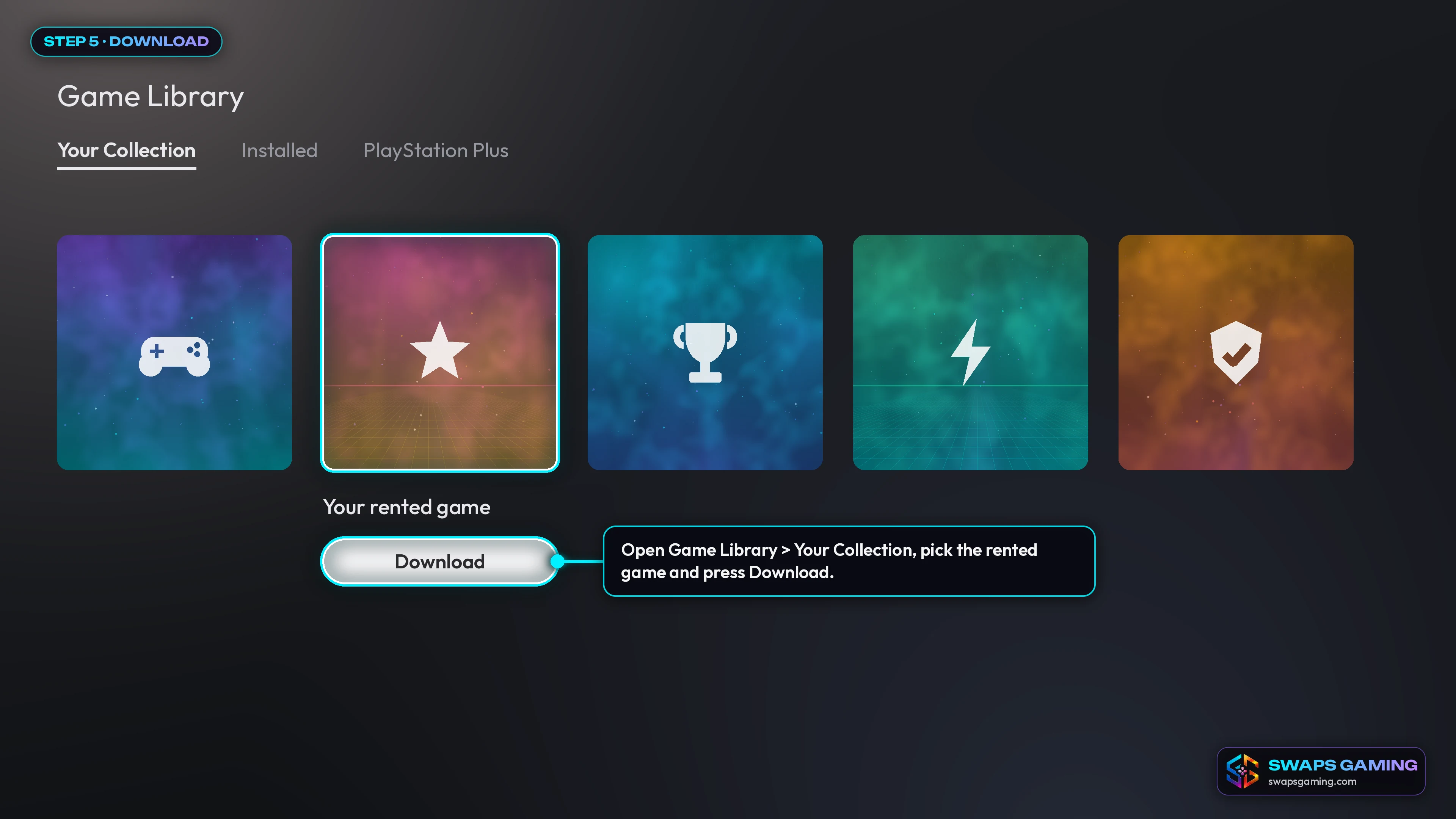
Open Game Library, then Your Collection, select the rented game and press Download.
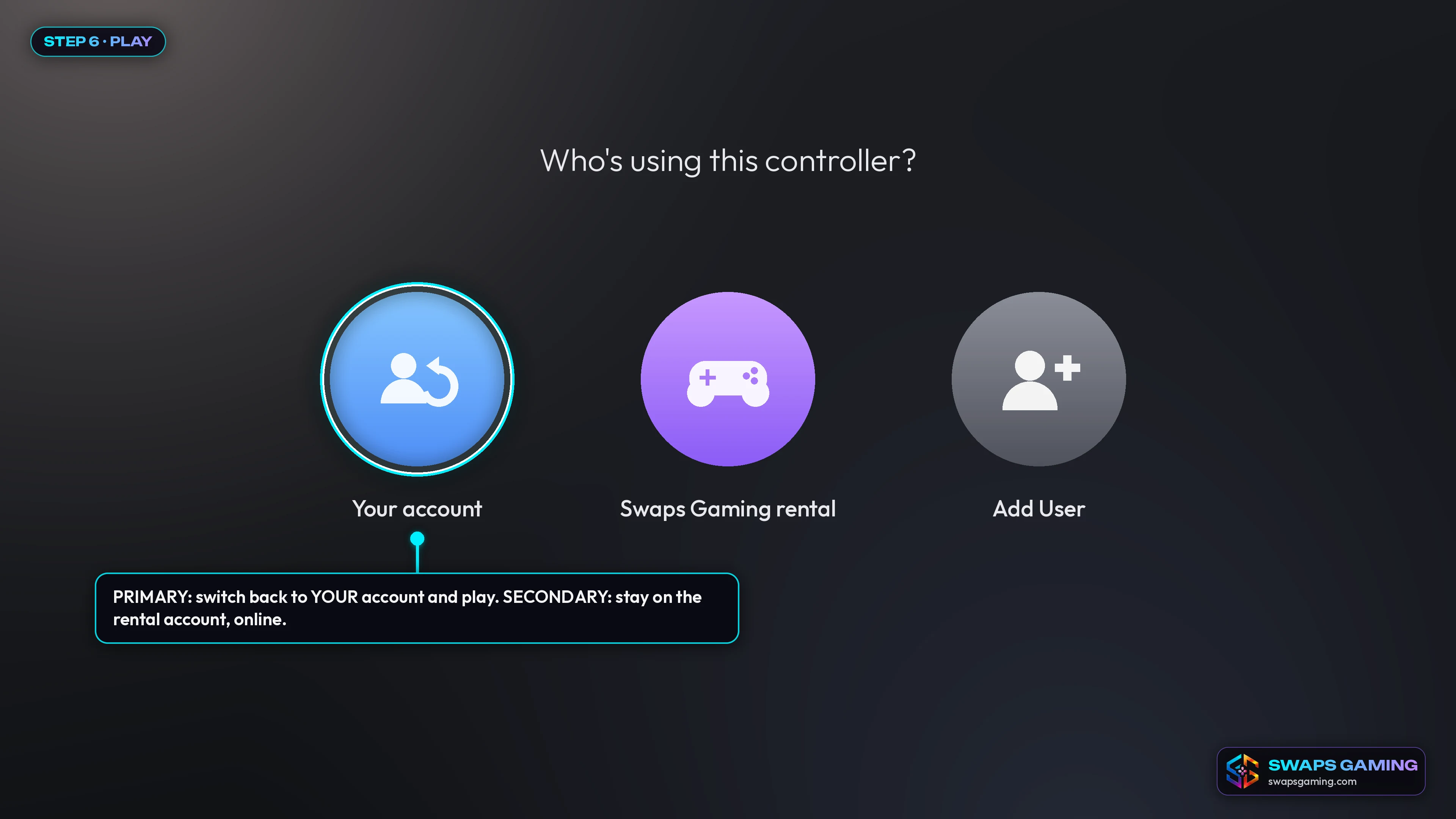
Step 6: Switch account and play
- Primary: switch back to your own account and play.
- Secondary: stay on the rental account and play while online.
Rules during your rental
- Keep the rental account on your console for the whole rental.
- Do not change the password, email or any account setting.
- Do not turn on 2-Step Verification (2FA).
- Do not share, sell or sign the account in on another console.
End of rental: the return checklist
Complete this checklist every time a Primary or Secondary rental ends. Record it on video, then upload the video on your Dashboard under that rental. The rental is complete once our team approves the video.
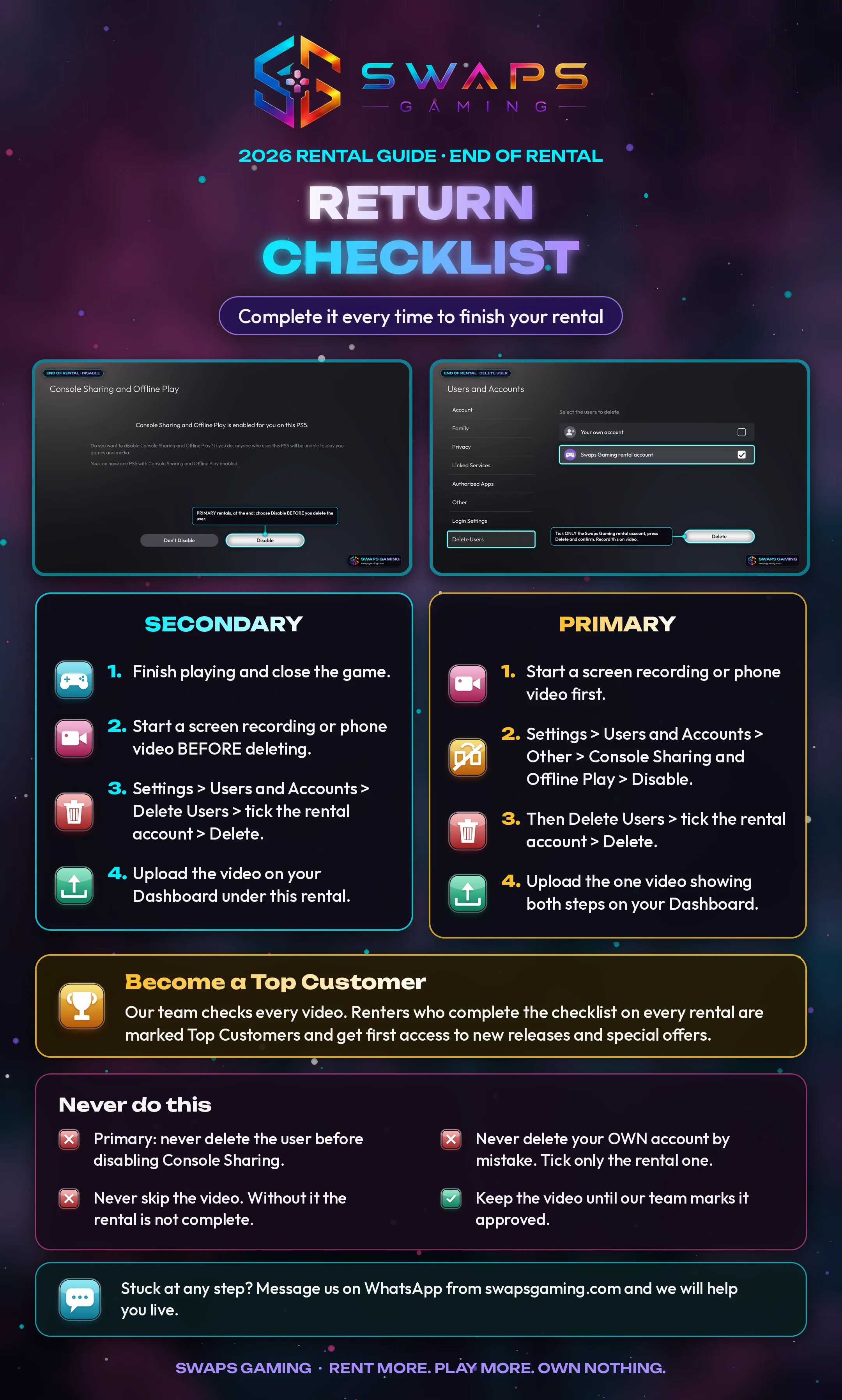
Secondary rentals
- Start a screen recording or a phone video before you delete anything.
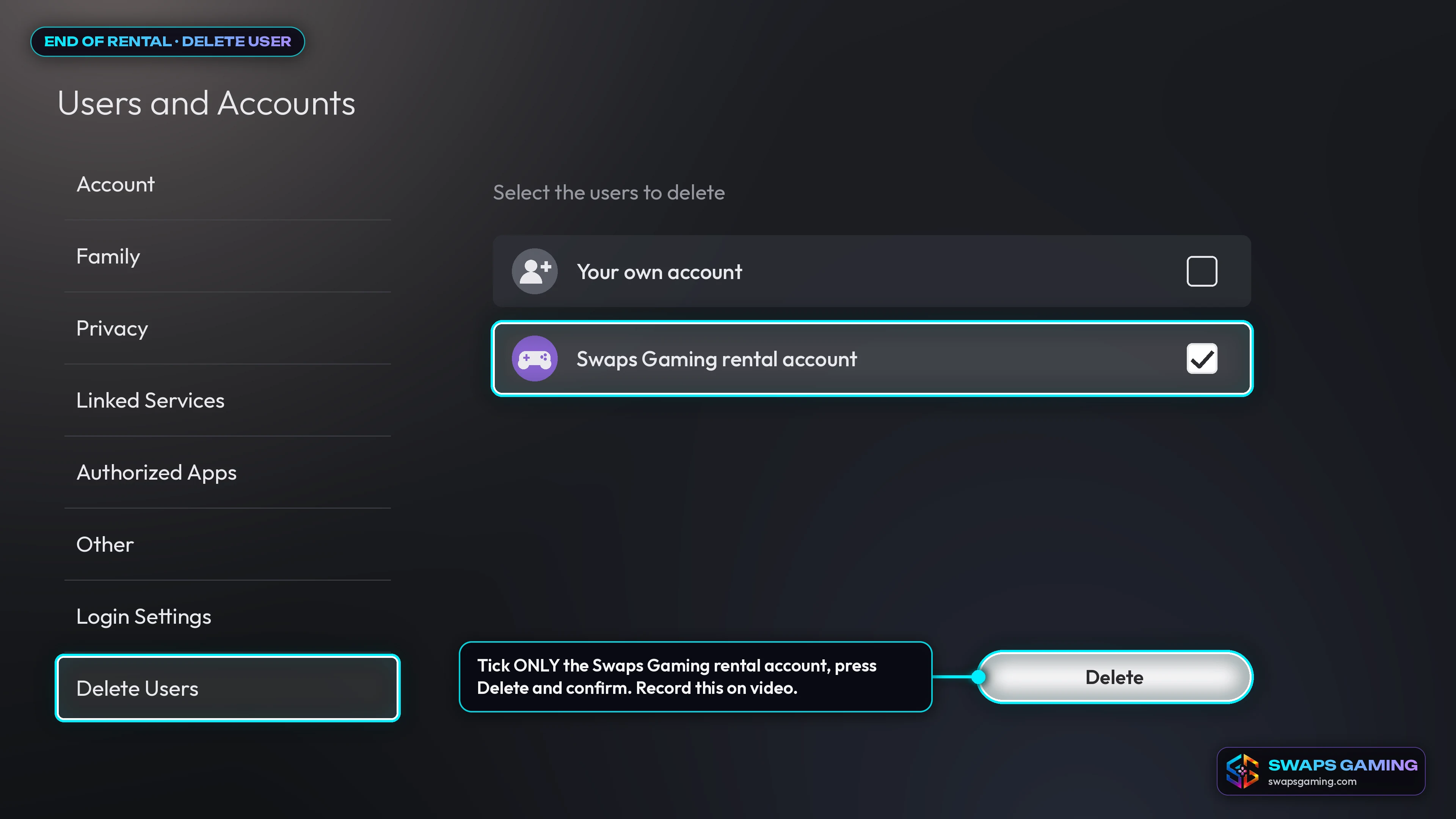
- Go to Settings > Users and Accounts > Delete Users.
- Tick only the rental account and press Delete, then confirm.
- Upload the video on your Dashboard.
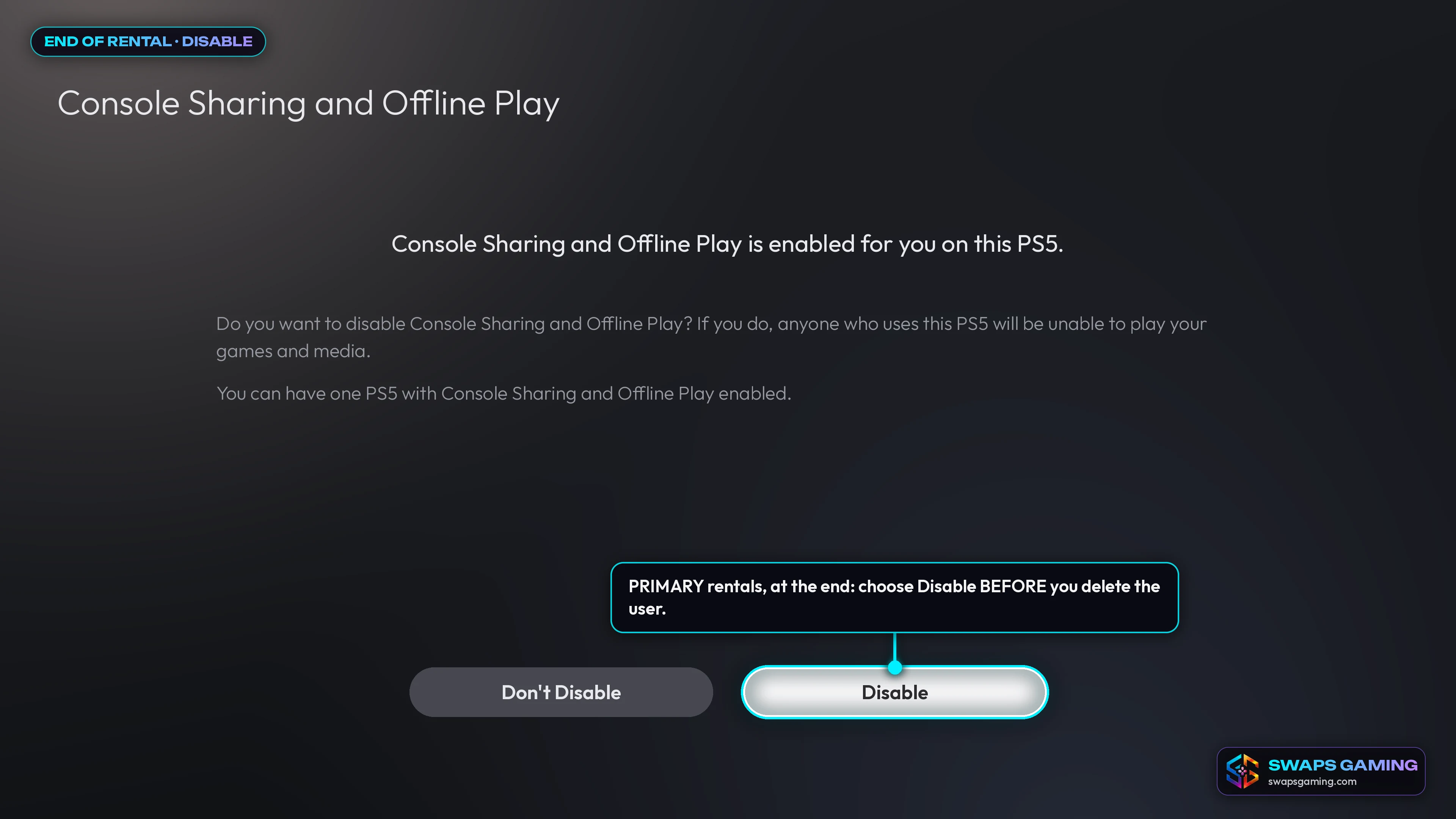
Primary rentals: disable Console Sharing first
- Start a screen recording or a phone video first.
- Go to Settings (gear icon, top right).
- Select Users and Accounts, then Other in the left menu.
- Select Console Sharing and Offline Play, choose Disable and confirm.
- Only then go to Delete Users, tick only the rental account and press Delete.
- Upload the one video that shows both the disable and the delete.
Deleting the user before disabling Console Sharing leaves the console registered to the rental account, so the next renter cannot use it. Always disable first.
Watch how it is done
This video shows disabling Console Sharing and Offline Play and deleting a user on a PS5.
How to upload your return video
- Open your Dashboard and find the rental.
- Open Return checklist, tick each step you completed and choose your video (MP4, MOV or WebM, up to 150 MB; a 1 to 2 minute clip is plenty).
- Press Upload video. The status shows Waiting for review, then Approved. If we ask for a new video, the reason is shown there and you can upload again.
Become a Top Customer
Our team checks every return video. Renters who complete the checklist with an approved video on every rental are marked Top Customers, and the badge appears on their Dashboard. Skipping the video on any rental means that rental is not complete.
Quick answers
Do Secondary renters disable Console Sharing?
No. Only Primary renters enable it at the start, so only Primary renters disable it at the end.
What if I delete my own account by mistake?
Deleting a user removes it from the console, not from PlayStation Network, so you can sign back in from Add User. Saves that were not uploaded to cloud storage can be lost, so tick only the rental account.
On a PS4
PS4 steps are different. Follow the PS4 rental rules and procedures: New User, Create a User, Accept, send the QR code, and Activate or Deactivate as Your Primary PS4 for Primary rentals.
Need help?
Stuck at any step? Message us on WhatsApp from swapsgaming.com and we will guide you live. More answers are on the FAQ page.